How to start a TikTok game stream
A step-by-step guide to starting a TikTok game stream where viewers play with comments, likes and gifts: requirements, setup and first-stream tips.
Two kinds of TikTok game streams
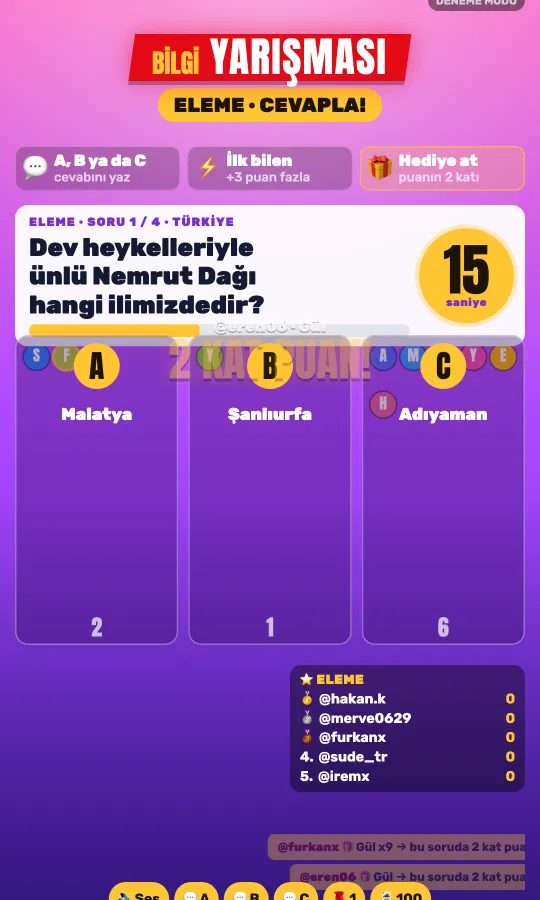
"TikTok game stream" can mean two different things. The first is the classic gaming stream, where the streamer plays a game and viewers watch: PUBG Mobile, Valorant, Minecraft and so on. The second, which has spread fast in recent years, is the interactive game stream: the game on screen is played by the viewers, not the streamer. A viewer joins the game by commenting, helps their team by sending likes, and triggers an explosion, a bomb or a giant effect on screen by sending a gift.
This guide covers the second kind, but the first steps (LIVE requirements, LIVE Studio, OBS) are the same for both. The biggest advantage of interactive game streams is that the streamer does not need to be good at a game. A streamer who chats, listens to music or simply sits on camera can also keep their audience active by adding a game to the stream.
1. Check the LIVE requirements
To start a game stream, you first need to be able to go live on TikTok. TikTok's requirements vary by region and are updated from time to time, but in most countries you need:
- To be at least 18 years old. The same applies to receiving gifts.
- A certain number of followers. 1,000 followers in most regions. The threshold may differ in some regions and for some accounts.
- An account in good standing with no restrictions under the Community Guidelines.
To check whether you have LIVE access, tap the + button at the bottom of the TikTok app and swipe to the LIVE tab. If the tab appears, you can go live. Streaming from a computer with TikTok LIVE Studio is subject to the same requirements for the account you log in with.
Joining a TikTok LIVE agency can give you extra tools and support in some regions. Streamers who join our partner agency use Dümen Games titles for free.
2. Set up your game
You do not need to download any software to use Dümen Games titles; the game runs as a web page.
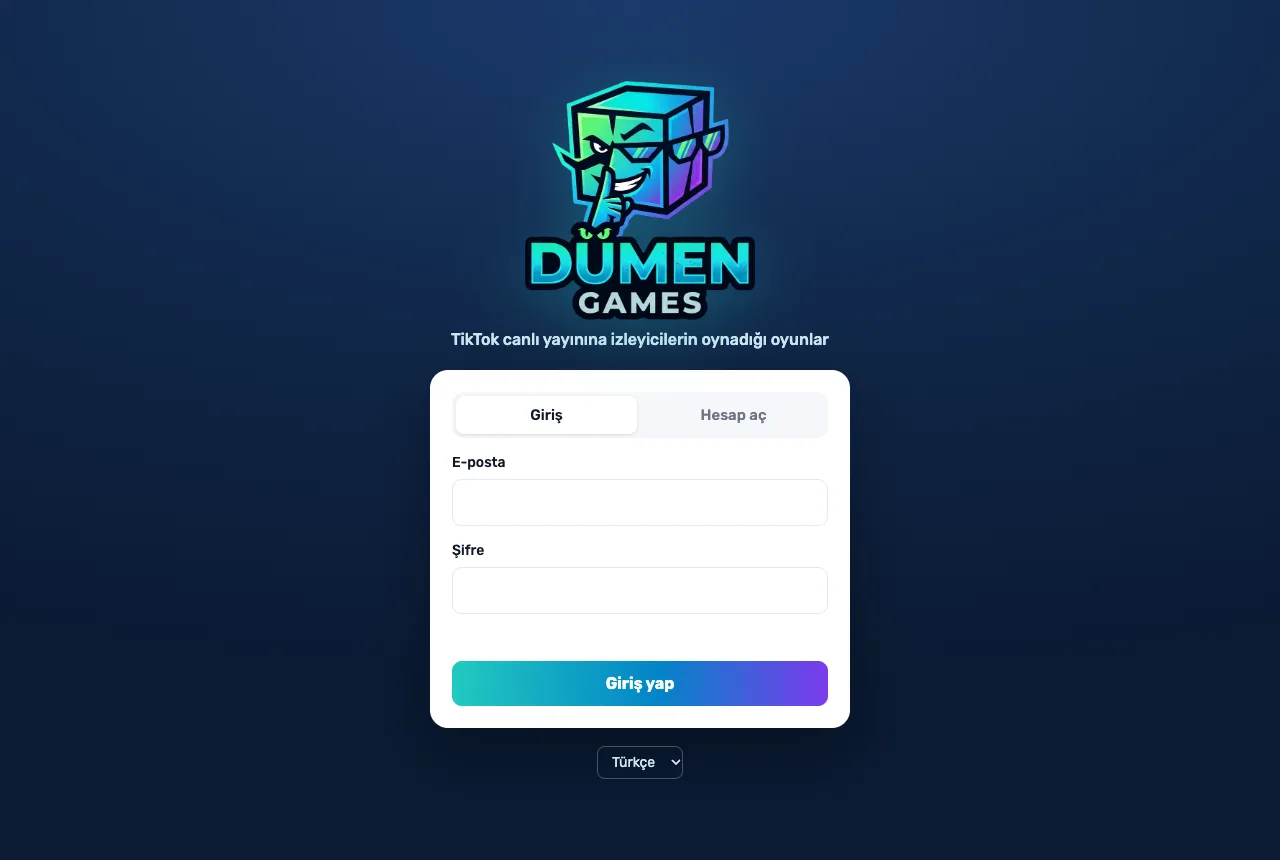
- Create an accountSign up with email or your Google account at tiktok.dumengames.com. Enter your TikTok username during sign-up (with or without the @ sign).
- Pick a gameIn the "Games" section of the panel, choose Province Arena, Tug of War, Quiz Battle, Halay Dance, Siege or Kaaba Tawaf. Game-specific settings (time, capacity, team names) are set in the same place.
- Copy your linkYour personal game link is in the "General" section. This link opens your room, so do not share it with anyone.
- Turn on auto-startWith "Auto-start when I go live" turned on, the game connects to your stream automatically the moment you go live.
- Test it in previewUse the preview and test section in the panel to try the game with simulated viewers before going live.
3. Going live with TikTok LIVE Studio
TikTok LIVE Studio is TikTok's official software for going live from a computer. It runs on Windows and you log in with your TikTok account. It is the easiest way to add the game to your stream.
- Install LIVE Studio and log inDownload the software from TikTok's official site and log in with your TikTok account.
- Use a vertical sceneSet the stream layout to vertical (9:16, 1080×1920). Our games are designed for vertical screens.
- Add a sourceFrom the add source menu, choose the link or browser source and paste your game link. Set the size to 1080×1920. If this source is not available, you can open the game in Chrome and add it with window capture.
- Turn on the audioKeep the source audio on for the game's music and effects, and keep its level below your microphone.
- Go liveStart your stream. If auto-start is on, the game connects to your stream within seconds and players start arriving with the first comment.
4. Going live with OBS
OBS Studio is free, open-source streaming software. To stream to TikTok from OBS, you need a stream key and server URL from TikTok. Stream keys may not be available for every account; try this route if you cannot use LIVE Studio or prefer to set up your stream in OBS.
- Set the canvas sizeIn Settings → Video, set both the base and output resolution to 1080×1920.
- Add a browser sourceSources → + → Browser. Paste your game link into the URL field and set the width to 1080 and the height to 1920. Turn on "Control audio via OBS" to adjust the game's sound from the mixer.
- Place your camera and other sourcesYou can put your camera as a small window in a top corner of the game. Leave the bottom of the screen clear; that is where TikTok comments appear.
- Enter the stream keyIn Settings → Stream, paste the server URL and key you got from TikTok, then start streaming.
5. No computer: game streaming from your phone
If you do not have a computer, you can stream the game straight from your phone. In the TikTok app, go to + → LIVE and choose Mobile gaming as the stream type to share your phone's screen. Keep the game link open in your phone's browser and your viewers will see the game on screen.
The "Stream from phone" card in the streamer panel has a QR code; scan it with your phone to open the game. The "Start game" button keeps the screen from going dark and starts the room. Full walkthrough: How to stream TikTok LIVE games from your phone.
6. Tips for your first game stream
- Say the rule in the first minute. Repeat "Comment to join the game" a few times at the start. It is on screen too, but a spoken call to action works much better.
- Read names out loud. Mention viewers by name when they enter the arena, reach the final or become halay leader. People stay on streams where they hear their name.
- Match the game to your stream. Quiz Battle works well on chat streams, Province Arena on busy streams, Tug of War on streams with a rivalry and Halay Dance on entertainment streams.
- Announce the weekly prize. Saying "This week's winner joins the stream as a guest on Sunday night" brings viewers back all week.
- Ask for fun, not gifts. The game already rewards gifts. Constantly asking for gifts wears viewers out; hyping the fun moments pays off more.
- Stream longer. Interactive games warm up in the first half hour. As your viewer count grows, the game comes alive on its own.
7. Common mistakes
| Problem | Cause | Fix |
|---|---|---|
| The game does not see comments | Wrong TikTok username in the panel, or the stream has not started yet | Check your username; after you go live, it takes a few seconds for the game to connect. |
| The game stutters or freezes | The game was left in a background tab of a regular browser | The game screen must stay visible. This does not happen with a LIVE Studio or OBS browser source. |
| No game audio | The browser is waiting for a tap to play sound, or the source is muted | Tap the screen once; unmute the source in LIVE Studio/OBS. |
| The image is cut off at the edges | The source size is not vertical | Set the source to 1080×1920 and use a vertical scene. |
| The phone screen goes dark | The phone's screen timeout | Open the game with the "Start game" button; it keeps the screen on. |
Ready? Let's go
Create an account, pick your game and run your first stream free. The free plan includes 3 streams a month.
Frequently asked questions
How many followers do I need to start a game stream on TikTok?
In most regions TikTok requires 1,000 followers and a minimum age of 18 to go live. Requirements can vary by country and account; if you see the LIVE tab in the app, you can go live.
Do I need a computer for a TikTok game stream?
No. With TikTok's "Mobile gaming" stream type you can share your phone screen and open the game in your phone's browser.
Is TikTok LIVE Studio free?
Yes, TikTok LIVE Studio is TikTok's free streaming software. Your account needs LIVE access.
Can I stream to TikTok with OBS?
Yes, using a stream key from TikTok. Stream keys may not be available on every account; in that case you can use LIVE Studio.
Are interactive game streams allowed under TikTok's rules?
Our games only read your stream's events; they never act on behalf of viewers and contain no gambling or games of chance. Streamers still need to follow TikTok's Community Guidelines.