
How to stream TikTok LIVE games from your phone
No computer? No problem. A step-by-step way to put interactive TikTok games on stream using only your phone.
The idea: your phone's screen goes live
TikTok's LIVE screen has several stream types. One of them, Mobile gaming, streams your phone's screen instead of your camera. Normally this type is used to stream phone games like PUBG Mobile or Brawl Stars. We use the same route: you open the game link in your phone's browser, TikTok streams your screen, and your viewers see the game and play with comments, likes and gifts.
The best part of this method is that it needs no extra equipment. A phone, a good internet connection and a TikTok account with LIVE access are enough.
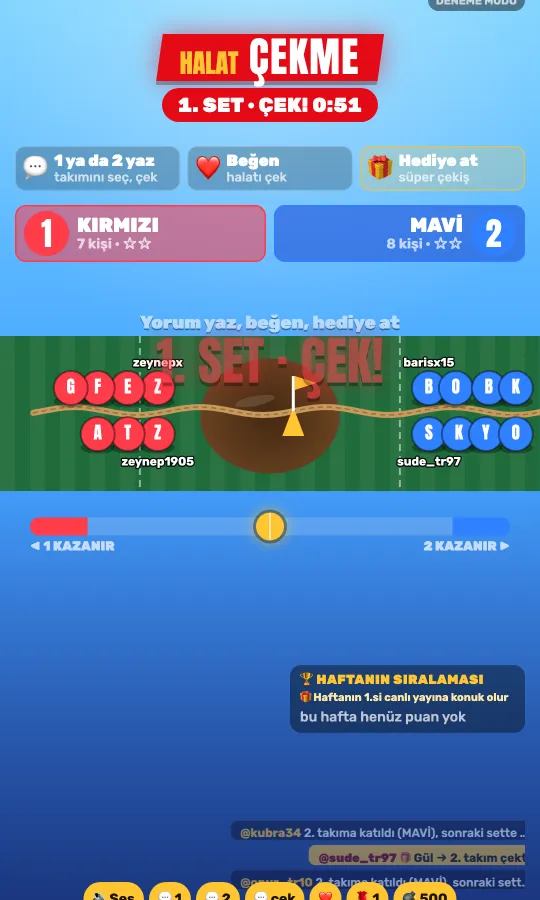
Step by step: game streaming from your phone
- Open the QR code in the panelLog in to the tiktok.dumengames.com panel from your computer or phone. Scan the QR code on the "Stream from phone" card with your phone camera, or send the link to your phone by messaging it to yourself.
- Open the game on your phoneThe link opens in your phone's browser and shows a short start screen. If you like, use "Add to Home Screen" to open the game full screen like an app.
- Tap "Start game"This button keeps the screen from going dark, switches to full screen on Android and starts the room. One tap on the screen is enough to enable sound.
- Open TikTok, LIVE → Mobile gamingIn the TikTok app, tap the + button, switch to the LIVE tab and choose Mobile gaming as the stream type. Write your title (something like "Comment to drop into the arena!") and start the stream.
- Go back to the browserOnce the stream starts, switch to the browser where the game is open. Your viewers can now see the game. The game checks its own connection every time you come back to the app.
Things to watch when streaming from your phone
Turn off notifications
Since your screen is live, incoming messages show up too. Turn on "Do Not Disturb" before you go live.
Plug in your charger
The screen stays on and the stream keeps running, so the battery drains fast. Keep your phone charging on long streams.
Use Wi-Fi
Video streaming uses a lot of data. A stable Wi-Fi connection improves both quality and game responsiveness.
Balance the audio
Do not let the game music drown out your voice. Keep the phone volume at a medium level and stay close to the phone when you talk.
Read the comments
In a Mobile gaming stream, TikTok comments appear in a small window. You can switch to TikTok now and then to read them.
Mount your phone
Put your phone on a stand. Holding it is tiring and leads to accidental taps on the screen.
Which phones does it work on?
The games run in up-to-date Chrome, Safari and Samsung Internet browsers. Any Android or iPhone model from the last few years is good enough. Even the 3D game Siege is kept lightweight enough to run smoothly on a phone. Whether the Mobile gaming stream type shows up on your account depends on TikTok's region and account settings.
If you have a computer, streaming with LIVE Studio or OBS usually gives you higher video quality and camera support. For computer streaming steps, see the TikTok game stream guide.
Frequently asked questions
Will my camera show when I stream from my phone?
The Mobile gaming stream type streams your screen, not your camera. If you want your camera to show as well, you need to go live from a computer with LIVE Studio or OBS.
I can't see the Mobile gaming option. What should I do?
This stream type is enabled depending on region and account. Update the TikTok app; if it is still missing, you can go live from a computer with LIVE Studio.
My iPhone screen goes dark while the game is open.
Open the game with the "Start game" button; it keeps the screen on. You can also extend the time under Settings → Display & Brightness → Auto-Lock.